

Tag: Ad Compliance

  • How to upload ads.txt file on your WordPress site

    How to upload ads.txt file on your WordPress site

    Adding an ads.txt file is typically required to get approval to monetize your website with ad networks.

    Here’s how you can upload an ads.txt file to your WordPress site:

    Method 1: Using an FTP Client

    1. Create Your ads.txt File:
      • Open a text editor (like Notepad or TextEdit).
      • Add the required lines to the file, specifying your ad network information.
      • Save the file as ads.txt.
    2. Connect to Your Website via FTP:
      • Use an FTP client (like FileZilla or Cyberduck) to connect to your web server.
      • Enter your FTP credentials (hostname, username, password, and port).
    3. Navigate to the Root Directory:
      • Once connected, navigate to the root directory of your WordPress installation, usually called public_html or the folder named after your domain.
    4. Upload the ads.txt File:
      • Drag and drop the ads.txt file from your computer into the root directory.
    5. Verify the Upload:
      • Open your browser and enter http://yourdomain.com/ads.txt to check if the file is accessible.

    Method 2: Using a File Manager in cPanel

    1. Create Your ads.txt File:
      • Follow the same steps as above to create and save the ads.txt file.
    2. Log into Your cPanel:
      • Access your hosting account and log into cPanel.
    3. Open File Manager:
      • Find and click on the File Manager icon.
    4. Navigate to the Root Directory:
      • Locate the root directory of your WordPress site (usually public_html).
    5. Upload the ads.txt File:
      • Click on the Upload button in the File Manager.
      • Select your ads.txt file and upload it.
    6. Verify the Upload:
      • As before, check by navigating to http://yourdomain.com/ads.txt in your browser.

    Method 3: Using a Plugin

    If you prefer a more user-friendly method, you can use a plugin:

    1. Install a Plugin:
      • Go to your WordPress dashboard.
      • Navigate to Plugins > Add New.
      • Search for a plugin like Ads.txt Manager or Insert Headers and Footers.
    2. Activate the Plugin:
      • Once installed, activate the plugin.
    3. Configure the Plugin:
      • Follow the plugin instructions to upload or enter the content for your ads.txt file.
    4. Save and Verify:
      • Save the changes and verify the upload by checking http://yourdomain.com/ads.txt.

    Final Steps

    Regardless of the method you choose, always remember to verify that the ads.txt file is accessible. This is essential for ad networks to recognize and validate your site.
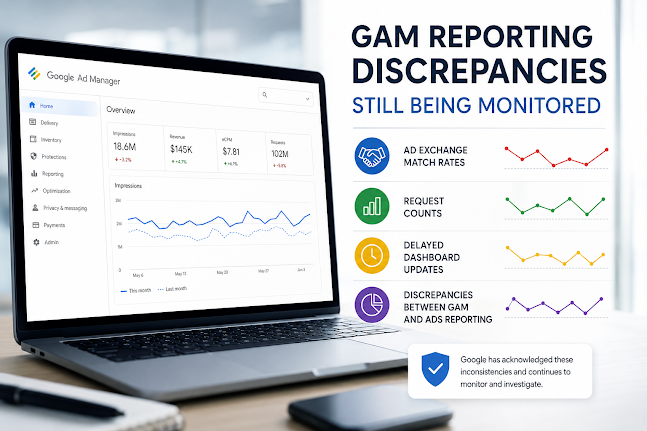
  • GAM Reporting Discrepancies Still Being Monitored: What Advertisers Need to Know

    GAM Reporting Discrepancies Still Being Monitored: What Advertisers Need to Know

    GAM Reporting Discrepancies Still Being Monitored: What Advertisers Need to Know

    Reporting inconsistencies in Google Ad Manager (GAM) continue to be actively monitored, following earlier acknowledgements of issues affecting key ad monetization and reporting signals across the platform.

    While the system remains operational, Google has previously confirmed that several reporting areas have shown irregularities that may impact how publishers and advertisers interpret performance data.

    Key Areas Affected

    The reported discrepancies have primarily been observed in the following areas:

    1. Ad Exchange match rates
    Some publishers have noticed fluctuations in match rates that do not fully align with expected traffic and demand behavior.

    2. Request counts
    Inconsistent request reporting has led to mismatches between GAM logs and downstream analytics tools.

    3. Delayed dashboard updates
    Certain reporting dashboards have experienced latency, causing delays in real-time or near-real-time performance visibility.

    4. GAM vs Ads reporting mismatches
    Differences have been observed between GAM reporting and other Google advertising surfaces, creating confusion when reconciling revenue and impression data.

    What This Means for Publishers

    For publishers relying on GAM for yield optimization and inventory analysis, these inconsistencies can create short-term uncertainty in:

    • Revenue pacing decisions
    • Bid strategy evaluation
    • Inventory forecasting
    • Campaign performance validation

    However, these issues are generally understood to be reporting-layer discrepancies rather than actual delivery or monetization failures.

    Current Status

    Google has acknowledged that these discrepancies are being monitored and investigated. No widespread service outage has been reported, and ad serving itself is not believed to be directly impacted.

    Instead, the focus remains on aligning reporting pipelines and ensuring consistency between GAM and related advertising reporting systems.

    Industry Context

    Reporting delays and mismatches are not uncommon in large-scale ad tech ecosystems, especially where multiple systems reconcile real-time bidding, impression logging, and attribution models.

    For ad operations teams, this reinforces the importance of:

    • Cross-validating GAM data with independent analytics tools
    • Monitoring trends rather than isolated daily fluctuations
    • Allowing for reporting latency in performance reviews

    Bottom Line

    While GAM reporting discrepancies remain under monitoring, the situation appears to be centered on data visibility rather than ad delivery. Publishers and advertisers should expect continued updates as Google works toward full reconciliation across reporting systems.