
Tag: Ad Monetization

  • The Biggest Quiet Power Move in Ad Tech Just Happened — And It Changes Everything

    The Biggest Quiet Power Move in Ad Tech Just Happened — And It Changes Everything

    Most people outside the ad industry won’t notice this yet. But inside ad tech? This is being called one of the most critical infrastructure deals of the decade.

    Publicis Groupe has officially agreed to acquire LiveRamp in an all-cash deal representing a $2.167 billion enterprise value ($2.546 billion equity value). As reported by Reuters, the blockbusting move marks a massive escalation in the race to control the future of data, identity, and AI-driven marketing.

    If that sounds deeply technical—it is. But the takeaway is simple:

    Whoever controls data connectivity controls modern advertising.

    🧠 Why This Deal Matters More Than It Looks

    LiveRamp isn’t just another ad tech company; it is the industry’s central nervous system for identity. It quietly enables brands to safely onboard, match, and connect customer data across 25,000+ publisher domains and 500+ technology partners.

    By absorbing LiveRamp into Publicis—one of the “Big Four” global advertising holding companies—the traditional boundaries of the industry are shifting overnight.

    By owning the plumbing, Publicis gains a staggering competitive edge:

    • Unprecedented Identity Control: Total integration of LiveRamp’s identity graph with Publicis’ existing data crown jewel, Epsilon.
    • Fuel for “Agentic Advertising”: True AI-driven marketing can’t run on generic data. It requires clean, continuous, proprietary data loops to execute and optimize campaigns autonomously.
    • The Death of Neutral Infrastructure: LiveRamp has historically acted as an independent, neutral Switzerland for data collaboration. That era is officially ending.

    ⚡ The Real Signal: The Land Grab for the AI Stack

    This isn’t just standard corporate consolidation. It is a land grab for the foundational layer of AI marketing.

    Publicis CEO Arthur Sadoun noted that the acquisition allows clients to practice “data co-creation”—the secure blending of multiple high-value data sources to build and train proprietary AI agents on top of leading large language models (LLMs). For example, a bank could now effortlessly spin up a highly compliant AI wealth management agent that securely synthesizes data from dozens of fragmented sources to target and cross-sell products flawlessly.

    This hyper-aggressive tech pivot has left competitors scrambling. The line between an “agency” that designs ads and a “tech platform” that moves data has vanished entirely.

    🧩 The 3 Major Shifts Accelerating Next

    ShiftThe Old WayThe New Reality
    1. Identity BattlegroundTracking users via third-party cookies.First-party data collaboration via secure “clean rooms.”
    2. Holding Company ROIBuying media volume to get discounts.Owning the data pipes and charging for structural infrastructure.
    3. AI Training GroundFeeding AI generic, public internet data.Feeding AI proprietary, brand-specific “co-created” data assets.

    ⚠️ The Industry Reaction is Polarized

    While Wall Street applauded the move—prompting Publicis to aggressively upgrade its financial growth targets through 2028—the broader ad tech community is anxious.

    • The Switzerland Problem: Will independent brands and rival holding companies trust LiveRamp with their first-party data now that it’s owned by a direct competitor?
    • Monopoly Fears: The sheer concentration of data power under Publicis (Epsilon + LiveRamp) creates an intimidating walled garden that few can replicate.
    • The Copycat Pressure: Heavyweights like WPP, Omnicom, and Interpublic Group (IPG) are now under immense structural pressure to buy or build an equivalent data layer before they get locked out.

    📌 The Bottom Line

    This isn’t just another multi-billion dollar tech transaction. It represents a paradigm shift in who owns the actual foundation of digital media.

    As digital advertising enters its autonomous, agent-led era, the question is no longer who can write the best ad copy or buy the cheapest media. The question is: If data is the true infrastructure of AI, who gets to control the signal layer—and who gets locked out?


  • Why Ads Don’t Show on Your Website (And How to Fix It)

    Why Ads Don’t Show on Your Website (And How to Fix It)

    If your website ads suddenly stopped appearing — or never showed up at all — you’re not alone. This is one of the most common problems publishers face, especially with platforms like Google AdSense and other ad networks.

    Sometimes the issue is simple. Other times it’s caused by policy restrictions, technical conflicts, or low-quality traffic. The good news is that most ad display issues can be fixed once you identify the root cause.

    1. Your Site Is Still Under Review

    Many ad networks manually or automatically review websites before serving ads. During this period, ad spaces will remain blank.

    • Common Signs: Ads show as empty containers, your dashboard reads “Getting ready” (common in Google AdSense), or ads appear randomly on a few pages but not others.
    • The Fix: Wait 24 to 72 hours post-approval. Keep publishing original content and avoid changing your site’s theme or critical plugins during active review windows. ( This sometimes takes 1-2 weeks specially if it’s your first time monetizing the site).

    2. Active Ad Blockers

    A massive portion of web traffic uses ad-blocking software, which strips out ad scripts before the page even finishes rendering.

    • The Impact: You see zero ads on your own device, revenue looks unusually low, and ads work fine for some visitors but fail for others.
    • How to Test: Open your site in an Incognito/Private window, temporarily disable desktop browser extensions, or test the URL on a mobile device using a standard browser. Common culprits include uBlock Origin, AdBlock Plus, and Brave Browser Shields.

    3. Broken or Incorrect Ad Code Placement

    A tiny syntax error or a bad copy-paste job during ad code installation will completely prevent ads from rendering.

    • Common Issues: Missing HTML closing tags (), dropping ad codes into unsupported sidebar widgets, or layout conflicts within your theme.
    • WordPress Specifics: Script optimization features in popular plugins frequently break ad delivery. Watch out for conflicts with:
      • Caching Plugins (e.g., WP Rocket, LiteSpeed Cache)
      • Minification Tools (combining CSS/JS)
      • Lazy-Load Plugins (delaying ad scripts until a user scrolls)
    • The Fix: Re-copy the clean code directly from your ad network dashboard. Turn off JavaScript optimization temporarily to see if the ads return.

    4. Policy Violations and Content Restrictions

    Ad networks protect their advertisers by limiting or disabling ad serving on pages that feature restricted or high-risk content.

    • High-Risk Content: Pages with copyrighted media, adult or shocking material, misleading download buttons, low-value/spammy AI-generated content, or heavy keyword stuffing.
    • The Fix: Even if your domain is fully approved, individual pages can be penalized. Check your ad network’s Policy Center regularly to clear any flagged URLs.

    5. Low Traffic or Poor Traffic Quality

    Networks prioritize advertiser budgets. If your traffic profiles look automated or low-value, ad networks will throttle your ad inventory.

    Quality over Quantity: Advertisers want human engagement. 100 highly engaged organic visitors are worth more than 10,000 automated views.

    • Avoid at all costs: Paid traffic farms, auto-refresh traffic exchanges, and click-incentive schemes.
    • The Fix: Focus on building clean, high-value traffic channels like organic Google search, natural social media shares, and returning direct readers.

    6. Privacy and Cookie Consent Plugins

    Strict privacy regulations (like GDPR and CCPA) mean that if a user rejects cookies—or if your setup is broken—ad scripts are completely blocked from initializing.

    • The Problem: If your cookie banner resets continuously or misconfigures script blocking, ads will never load for your visitors.
    • The Fix: Visit your site, manually accept the cookie prompts, and see if the ads appear. You can also use a VPN to test how your site handles consent across different global regions.

    7. Formatting Errors in Your ads.txt File

    An incorrect or missing ads.txt file signals to programmatic buyers that your ad inventory isn’t verified, causing advertiser demand to drop to zero instantly.

    • Common Mistakes: Typographical errors in your Publisher ID, duplicate entries, or missing authorized seller rows.
    • The Fix: Verify your file directly by navigating to yourdomain.com/ads.txt. Ensure the page loads publicly as plain text without redirecting or throwing formatting errors.

    8. Limited Inventory on New Domains

    Brand new websites and fresh domains face a natural “warm-up” period where ad networks evaluate the platform’s stability.

    • What Networks Evaluate: Historical site trust, content depth, user engagement metrics, and overall niche stability.
    • The Results: New sites frequently experience blank ad spaces, Public Service Announcement (PSA) ads, or exceptionally low Cost Per Mille (CPM) rates. Consistency in publishing matters far more here than constantly redesigning your layout.

    9. Aggressive Caching and CDN Conflicts

    Over-optimized site speed settings can accidentally cache the “blank” state of an ad or defer vital ad delivery scripts indefinitely.

    • Potential Causes: Features like Cloudflare Rocket Loader, HTML edge caching, and aggressive JavaScript deferral strategies.
    • The Fix: Clear your website plugin cache, flush your CDN (like Cloudflare), empty your local browser cache, and reload the page.

    10. Account-Level Ad Serving Limits

    Networks like Google AdSense frequently apply temporary ad serving limits if they detect patterns that mimic invalid click traffic.

    • Key Indicators: A sudden, steep drop in revenue overnight, highly inconsistent ad rendering, and account warning banners.
    • The Fix: This does not mean you are permanently banned. Address it by auditing your analytics for spam traffic, focusing heavily on content quality, and strictly avoiding accidental self-clicks during site development.
  • What is Programmatic advertising?

    What is Programmatic advertising?

    Programmatic advertising is the automated process of buying and selling digital ad space in real-time, using software, algorithms, and data to target specific audiences more effectively. Instead of manually negotiating with publishers to place ads on websites, programmatic systems use real-time bidding (RTB) and other automated processes to purchase ad inventory across various digital channels (websites, apps, social media, etc.).

    Key Components:

    1. Demand-Side Platforms (DSPs): Allow advertisers to buy digital ad space automatically, targeting specific audiences based on various factors (demographics, interests, behaviour
      ).
    2. Supply-Side Platforms (SSPs): Help publishers manage, sell, and optimize their available ad space through an automated auction process.
    3. Real-Time Bidding (RTB): Ads are bought and sold in real-time, typically in milliseconds, based on the value of the impressions and targeting parameters set by the advertiser.
    4. Ad Exchanges: Digital marketplaces where buyers (advertisers) and sellers (publishers) meet to trade ad inventory programmatically.
    5. Data Management Platforms (DMPs): Collect and analyze audience data to help advertisers refine their targeting strategies for more personalized ad delivery.

    Benefits of Programmatic Advertising:

    Real-Time Optimization: Advertisers can adjust campaigns on the fly based on performance data.

    Efficiency and Speed: Automates the ad-buying process, making it faster and more efficient.

    Precise Targeting: Uses data and algorithms to deliver ads to specific audiences, reducing waste and increasing relevance.

    Scalability: Advertisers can reach large audiences across multiple platforms and devices.

    Real-Time Optimization:
     Advertisers can adjust campaigns on the fly based on performance data.

  • Getting your site monetized by Google AdSense

    Getting your site monetized by Google AdSense

    Here’s a general guide to help you through the process:

    1. Create Quality Content: Ensure your website has original, high-quality content that is useful and relevant to your audience. Aim for at least 20-30 posts or pages before applying.
    2. Comply with AdSense Policies: Familiarize yourself with Google AdSense policies and guidelines. Key areas include:
      • No adult content, violence, or illegal activities.
      • No misleading information or clickbait.
      • Ensure your content is family-friendly.
    3. Design a User-Friendly Website: Make sure your website has a clean and professional design. It should be easy to navigate, with clear menus and categories. Responsive design for mobile users is crucial.
    4. Add Essential Pages: Include important pages such as:
      • About Us
      • Contact Us
      • Privacy Policy
      • Terms and Conditions
    5. Ensure Your Site is Fully Functional: Check for broken links, slow loading times, and ensure that all features work properly.
    6. Set Up a Custom Domain: If possible, use a custom domain (e.g., www.yoursite.com) instead of a free subdomain.
    7. Check Traffic Sources: Ensure that your traffic comes from legitimate sources. Avoid using paid traffic services that violate AdSense policies.
    8. Apply for AdSense: Once your site is ready, go to the AdSense website and sign up. Fill out the application form and submit your site for review.
    9. Wait for Approval: Google will review your application, which can take anywhere from a few days to a couple of weeks. You’ll receive an email with the result of your application.
    10. Implement Ad Codes: If approved, you’ll receive ad code snippets to place on your website. Make sure to follow the instructions carefully to implement ads correctly.
    11. Monitor Performance: Once ads are live, monitor your performance and compliance with AdSense policies regularly to avoid issues.

    If your application is rejected, review the feedback provided, make the necessary changes, and consider reapplying after some time.

  • How to prevent Cumulative Layout Shift (CLS) when adding Ads on your site.

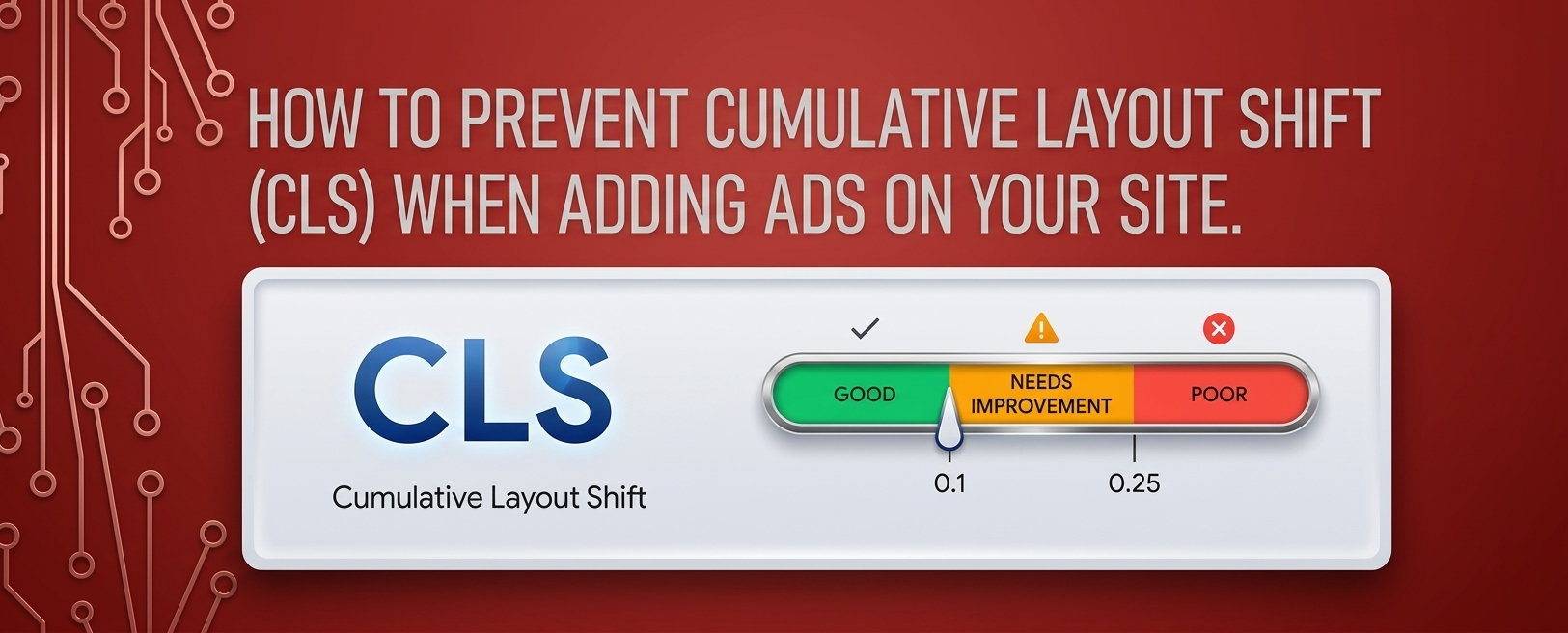
    How to prevent Cumulative Layout Shift (CLS) when adding Ads on your site.

    To prevent ads from causing layout shifts on your site, it’s important to implement best practices for ad placement and sizing. Here are some effective strategies:

    1. Specify Size for Ad Containers

    • Always define the width and height of your ad units in pixels or percentages. This ensures the browser reserves space for the ad before it loads.
    <div class="ad-container" style="width: 300px; height: 250px;">
    <script>/* Ad code here */</script>
    </div>

    2. Use Responsive Ads Carefully

    • If using responsive ad units, ensure the parent container has a defined aspect ratio. This helps maintain layout integrity during loading.
    .responsive-ad {
    width: 100%; /* Full width */
    height: auto; /* Maintain aspect ratio */
    padding-bottom: 75%; /* Example aspect ratio for 300x250 */
    position: relative; /* Position relative for absolute child */
    }

    3. Implement a Placeholder for Ads

    • Create a placeholder or a “dummy” ad container with fixed dimensions. This helps prevent layout shifts while the ad loads.
    code<div class="ad-placeholder" style="width: 300px; height: 250px;">
    <!-- Placeholder content -->
    </div>

    4. Reserve Space for Ads in CSS

    • Use CSS to ensure there’s a reserved space for the ad. This can be particularly useful for dynamic ads where the size might vary.
    code.ad-space {
    width: 300px; /* Fixed width */
    height: 250px; /* Fixed height */
    overflow: hidden; /* Hide overflow */
    }

    5. Load Ads Asynchronously

    • Load ads asynchronously to prevent them from blocking the rendering of other content. This can improve the overall loading experience.
    <script async src="https://your-ad-script.js"></script>

    6. Use Lazy Loading for Ads

    • Consider lazy loading ads that are off-screen. This can help manage loading times and prevent layout shifts for ads that aren’t immediately visible to the user.
    code<div class="lazy-ad" data-src="your-ad-code">
    <!-- Lazy loading logic -->
    </div>

    7. Minimize the Use of Pop-Up Ads

    • Avoid using pop-up ads that cover the main content and cause shifts when they appear. Instead, consider using static banners that fit within the layout.

    8. Test Your Ads Setup

    • After implementing your ads, use tools like Google PageSpeed Insights or Lighthouse to check your CLS score and see if the ads are causing any layout shifts.

    9. Regularly Update Ad Sizes

    • Stay updated with the latest ad sizes recommended by ad networks and make sure your site accommodates these dimensions properly.

    Conclusion

  • How to improve FID on your site after monetization.

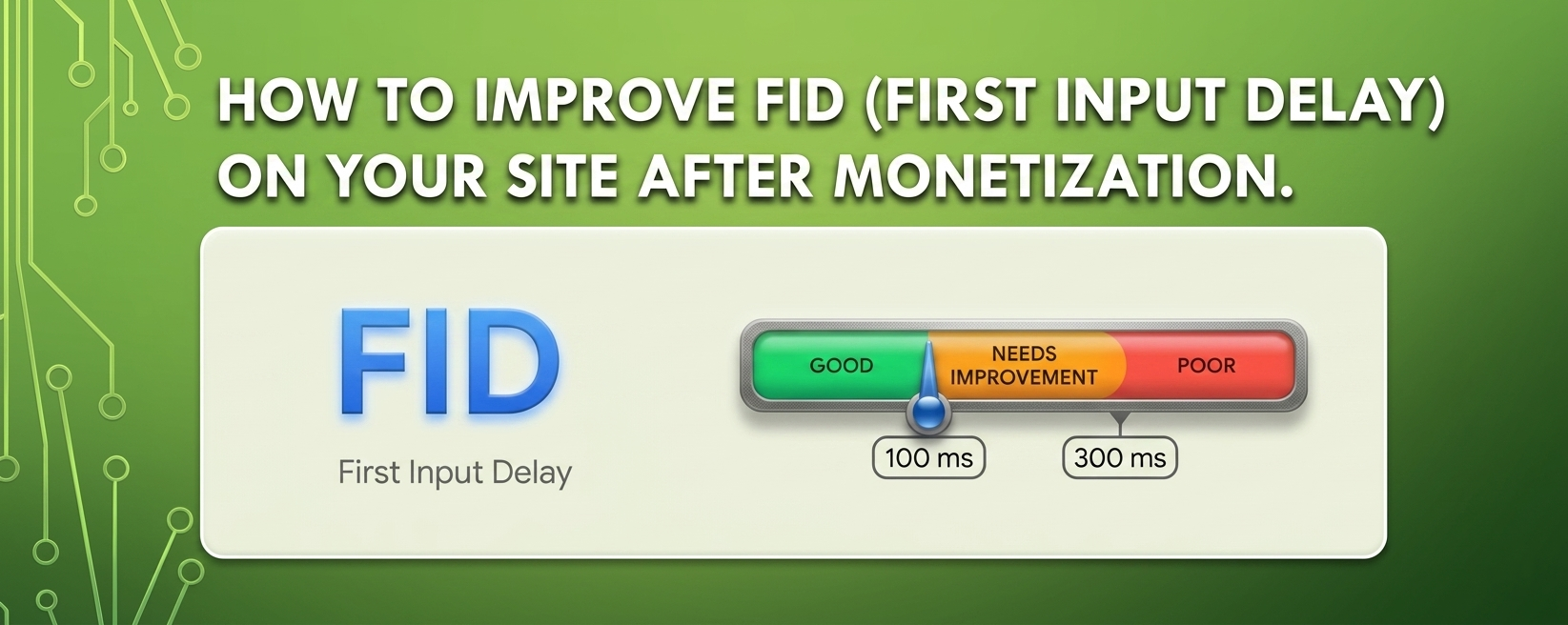
    How to improve FID on your site after monetization.

    Improving First Input Delay (FID) on your site after monetization is crucial for maintaining a good user experience. FID measures the time it takes for a page to respond to a user’s first interaction (like clicking a link or button). Here are several strategies to enhance FID while ensuring your monetization efforts do not negatively impact performance:

    1. Optimize JavaScript Execution

    • Minimize JavaScript: Reduce the amount of JavaScript that needs to load before the page becomes interactive. Remove any unused code and minimize scripts where possible.
    • Defer and Async Loading: Use defer or async attributes on your script tags to prevent blocking the main thread. This allows the browser to load JavaScript without delaying the page’s initial rendering.
    htmlCopy code<script src="your-script.js" defer></script>
    

    2. Prioritize Critical Scripts

    • Load essential scripts for initial interactions first. Non-essential scripts can be loaded later, after the main content has loaded.

    3. Optimize Third-Party Scripts

    • Be mindful of third-party scripts, especially ads and tracking scripts, as they can slow down FID. Use lightweight alternatives or load them asynchronously.
    • Consider using a tag manager to control when and how third-party scripts are loaded.

    4. Reduce Main Thread Work

    • Limit the complexity of tasks running on the main thread during the page’s initial load. Break up long tasks using techniques like requestIdleCallback to improve responsiveness.

    5. Implement Lazy Loading

    • Use lazy loading for images and iframes to defer loading of off-screen content. This reduces the initial load time and allows users to interact with the page sooner.
    htmlCopy code<img src="example.jpg" loading="lazy" alt="Example">
    

    6. Optimize Your Web Fonts

    • Load fonts efficiently by using font-display: swap; in your CSS to ensure text remains visible during font loading. This prevents delays in rendering text and improves FID.
    cssCopy code@font-face {
        font-family: 'MyFont';
        src: url('myfont.woff2') format('woff2');
        font-display: swap;
    }
    

    7. Improve Server Response Times

    • Optimize your server response time to ensure that the HTML is delivered to the browser quickly. This includes optimizing your hosting environment and using caching strategies.

    8. Reduce Resource Size

    • Compress resources (images, CSS, and JavaScript) using tools like Gzip or Brotli. Smaller resource sizes reduce load times and improve responsiveness.

    9. Use a Content Delivery Network (CDN)

    • Implement a CDN to serve your content from locations closer to your users, reducing latency and improving load times.

    10. Monitor Performance Regularly

    Use tools like Google PageSpeed Insights, Lighthouse, or WebPageTest to regularly monitor your site’s performance, focusing on FID. Adjust strategies based on the data you collect.

  • Tips on how to improve LCP on your site after monetization

    Tips on how to improve LCP on your site after monetization

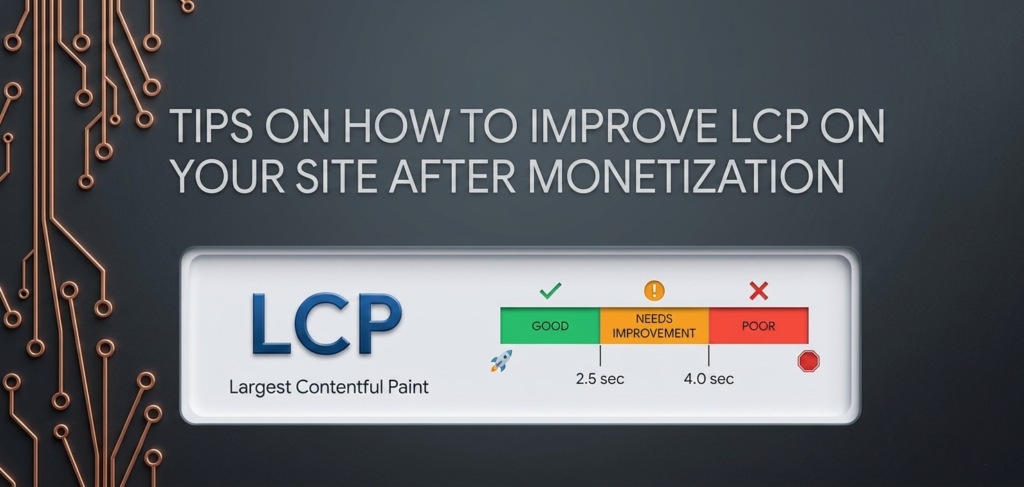
    Improving Largest Contentful Paint (LCP) on your site after monetization is essential for ensuring a positive user experience. LCP measures how quickly the largest visible content element on your page loads and is fully rendered. A good LCP score is under 2.5 seconds. Here are several strategies to enhance LCP while managing your monetization efforts:

    1. Optimize Images and Media

    • Use Appropriate Formats: Use modern image formats like WebP or AVIF, which offer better compression without compromising quality.
    • Compress Images: Optimize images to reduce file sizes. Use tools like TinyPNG or ImageOptim to compress images without significant loss in quality.
    • Specify Dimensions: Always specify the width and height attributes in your image tags or CSS. This helps the browser allocate space for images before they load.
    htmlCopy code<img src="example.webp" alt="Example" width="800" height="600">
    

    2. Improve Server Response Times

    • Optimize your server and hosting environment to ensure fast response times. This may involve choosing a better hosting plan or provider, optimizing your database, or using server-side caching.

    3. Use a Content Delivery Network (CDN)

    • Implement a CDN to serve static assets (like images, CSS, and JavaScript) from locations closer to your users. This reduces latency and speeds up content delivery.

    4. Minimize Render-Blocking Resources

    • Defer Non-Critical JavaScript: Use the defer or async attributes for script tags to prevent them from blocking rendering of the main content.
    • Inline Critical CSS: Inline critical CSS needed for rendering the above-the-fold content and load non-critical CSS asynchronously.

    5. Optimize Fonts

    • Load web fonts efficiently by using the font-display: swap; property in your CSS. This ensures text is visible while fonts are loading, preventing delays in rendering.
    cssCopy code@font-face {
        font-family: 'MyFont';
        src: url('myfont.woff2') format('woff2');
        font-display: swap;
    }
    

    6. Eliminate Unnecessary Plugins and Scripts

    • Review your site’s plugins and scripts, especially third-party ones like ads and tracking scripts. Remove any that are unnecessary, as they can slow down your site.

    7. Lazy Load Off-Screen Content

    • Implement lazy loading for images and iframes that are off-screen to reduce the initial load time for above-the-fold content.
    htmlCopy code<img src="example.jpg" loading="lazy" alt="Example">
    

    8. Optimize Your CSS

    • Minimize and compress CSS files to reduce their size and improve loading times. Combine CSS files where possible to reduce the number of HTTP requests.

    9. Reduce the Size of Your HTML

    • Optimize your HTML structure to reduce its size. Remove unnecessary comments and whitespace, and ensure that only essential elements are loaded initially.

    10. Monitor and Test Regularly

    Use tools like Google PageSpeed Insights, Lighthouse, or WebPageTest to monitor your LCP score and identify areas for improvement. Make adjustments based on the insights gained from these tools.

  • Introduction to Bing Ads (Microsoft Advertising)

    Introduction to Bing Ads (Microsoft Advertising)

    Introduction to Bing Ads (Microsoft Advertising)

    Bing Ads, now rebranded as Microsoft Advertising, is a pay-per-click (PPC) platform that allows website owners to monetize traffic by displaying targeted ads. These ads appear on Bing, Yahoo, MSN, and Microsoft Start, helping businesses reach millions of potential customers. Setting up Bing Ads on your website can help you generate revenue through clicks and impressions.

    Step-by-Step Guide to Setting Up Bing Ads on Your Website

    Step 1: Create a Microsoft Advertising Account

    1. Go to the Microsoft Advertising website → ads.microsoft.com.
    2. Click Sign Up and choose whether to sign in with an existing Microsoft account or create a new one.
    3. Enter your business name, website URL, country, and time zone.
    4. Accept the terms and click Create Account.

    Step 2: Set Up Your Website for Bing Ads – Once your account is created, you’ll need to integrate ads into your website. There are two main ways to do this:

    Option 1: Use the Microsoft Audience Network (MSAN) for Display Ads

    The Microsoft Audience Network allows you to display Bing Ads on your website, similar to Google AdSense.

    How to Enable Microsoft Audience Network (MSAN) Ads:

    1. In your Microsoft Advertising dashboard, go to Tools > Audience Network Setup.
    2. Click “Create an Ad Unit” and select the type of ad format (display ads, native ads, or text ads).
    3. Customize the ad settings (size, style, colors).
    4. Generate the Ad Code and copy it.
    5. Paste the ad code into your website’s HTML source code (usually in the <head> section, sidebar, or within content areas).

    💡 Tip: Place ads in high-visibility areas like the top of articles, sidebars, or within content for better engagement.

    Option 2: Monetize Content with Microsoft Start Partner Program (MSN Content Monetization)

    If you run a news, blog, or media site, you can earn revenue by syndicating your content to Microsoft Start and MSN.

    How to Apply for Microsoft Start Partner Program:

    1. Visit the Microsoft Start Partner Hub.
    2. Submit your website for review (make sure you have high-quality, original content).
    3. If approved, your articles will be displayed on MSN, Microsoft Edge, and Bing News, generating revenue from Microsoft’s ad network.

    💡 Tip: This works best for publishers, bloggers, and media sites looking to expand their audience and monetize content.

    Step 3: Install Microsoft Clarity for Website Insights (Optional but Recommended)

    To track how visitors interact with your ads, install Microsoft Clarity, a free analytics tool that provides heatmaps and session recordings.

    How to Set Up Microsoft Clarity:

    1. Go to clarity.microsoft.com and sign up.
    2. Add your website and generate the Clarity tracking code.
    3. Paste the code into your website’s <head> section.
    4. Use Clarity’s dashboard to analyze visitor behavior and improve ad placements.


    Step 4: Optimize Ads for Higher Revenue

    1. Test different ad placements – Try sidebar ads, in-content ads, and header ads to find the best-performing spots.
    2. Use responsive ads – Ensure ads fit all screen sizes for mobile and desktop users.
    3. Filter low-performing ads – In the Microsoft Advertising dashboard, block irrelevant ads that don’t convert well.
    4. Improve website speed – A slow-loading website can reduce ad revenue. Use tools like Google PageSpeed Insights to optimize performance.

    Step 5: Monitor Earnings and Get Paid

    Go to the Microsoft Advertising dashboard to view earnings and ad performance.Payments are made through bank transfer, PayPal, or check, depending on your country.The minimum payout threshold varies, but typically it’s $100 before you can withdraw funds. 

  • GAM Reporting Discrepancies Still Being Monitored: What Advertisers Need to Know

    GAM Reporting Discrepancies Still Being Monitored: What Advertisers Need to Know

    GAM Reporting Discrepancies Still Being Monitored: What Advertisers Need to Know

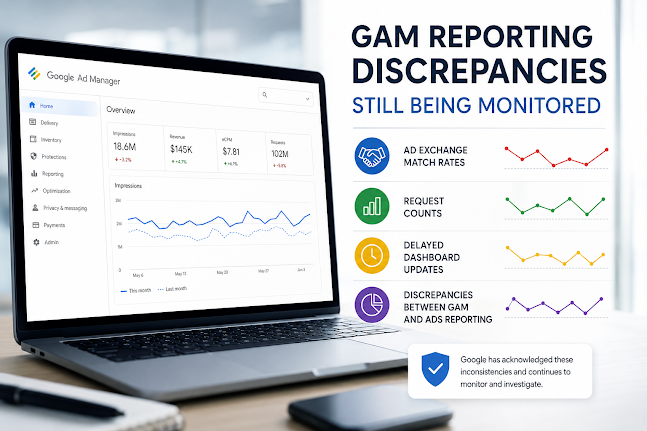
    Reporting inconsistencies in Google Ad Manager (GAM) continue to be actively monitored, following earlier acknowledgements of issues affecting key ad monetization and reporting signals across the platform.

    While the system remains operational, Google has previously confirmed that several reporting areas have shown irregularities that may impact how publishers and advertisers interpret performance data.

    Key Areas Affected

    The reported discrepancies have primarily been observed in the following areas:

    1. Ad Exchange match rates
    Some publishers have noticed fluctuations in match rates that do not fully align with expected traffic and demand behavior.

    2. Request counts
    Inconsistent request reporting has led to mismatches between GAM logs and downstream analytics tools.

    3. Delayed dashboard updates
    Certain reporting dashboards have experienced latency, causing delays in real-time or near-real-time performance visibility.

    4. GAM vs Ads reporting mismatches
    Differences have been observed between GAM reporting and other Google advertising surfaces, creating confusion when reconciling revenue and impression data.

    What This Means for Publishers

    For publishers relying on GAM for yield optimization and inventory analysis, these inconsistencies can create short-term uncertainty in:

    • Revenue pacing decisions
    • Bid strategy evaluation
    • Inventory forecasting
    • Campaign performance validation

    However, these issues are generally understood to be reporting-layer discrepancies rather than actual delivery or monetization failures.

    Current Status

    Google has acknowledged that these discrepancies are being monitored and investigated. No widespread service outage has been reported, and ad serving itself is not believed to be directly impacted.

    Instead, the focus remains on aligning reporting pipelines and ensuring consistency between GAM and related advertising reporting systems.

    Industry Context

    Reporting delays and mismatches are not uncommon in large-scale ad tech ecosystems, especially where multiple systems reconcile real-time bidding, impression logging, and attribution models.

    For ad operations teams, this reinforces the importance of:

    • Cross-validating GAM data with independent analytics tools
    • Monitoring trends rather than isolated daily fluctuations
    • Allowing for reporting latency in performance reviews

    Bottom Line

    While GAM reporting discrepancies remain under monitoring, the situation appears to be centered on data visibility rather than ad delivery. Publishers and advertisers should expect continued updates as Google works toward full reconciliation across reporting systems.