Tag: ad tech

  • The Programmatic CTV Explosion of 2026

    The Programmatic CTV Explosion of 2026

    📺 The Programmatic CTV Explosion of 2026
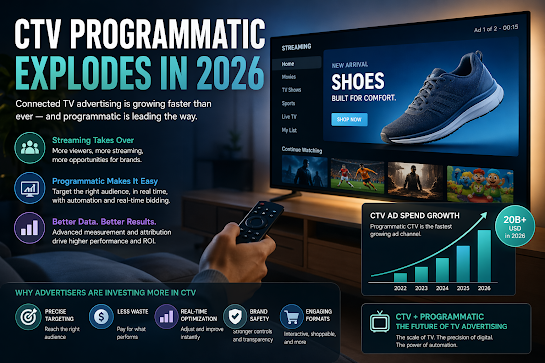
    Connected TV (CTV) has shed its “emerging channel” label. In 2026, it is the undisputed heavyweight of digital advertising, fueled by the total convergence of streaming scale and AI-driven precision.

    🚀 Why the Explosion is Peaks in 2026

    The shift is no longer a “trend”—it’s a completed migration.

    1. The “Tipping Point” of Viewership
      • Streaming Surpasses Linear: For the first time, streaming accounts for over 45% of all TV viewing, officially overtaking broadcast and cable combined.
      • The Rise of FAST: Free Ad-Supported TV (Pluto, Tubi, Samsung TV Plus) has become the new “basic cable,” offering massive reach for programmatic buyers.
    2. Agentic AI Integration
      • In 2026, we’ve moved past simple automation to Agentic AI. AI agents now manage real-time bidding, “attention-adjusted” pricing, and creative optimization without manual intervention.
    3. Retail Media & First-Party Data
      • With the death of the cookie, CTV has become the hero of First-Party Data. Brands now link retail purchase data (e.g., Walmart, Amazon) directly to TV impressions to prove exactly who bought a product after seeing an ad.

    📈 From Branding to Performance

    Traditional TV was a “reach” play. 2026 CTV is a “results” play.

    FeatureTraditional TV (Linear)Programmatic CTV (2026)
    TargetingBroad Demographics (Age/Gender)Household-level (Interests/Buying Habits)
    BuyingManual IOs & UpfrontsReal-Time Bidding (RTB)
    OptimizationStatic (Fixed 30-sec spots)Dynamic (AI-adjusted creative)
    MeasurementGRPs & EstimatesDirect Attribution (Web visits/Sales)

    🎨 New “Active” Ad Formats

    Viewers are no longer passive. The TV screen is now an interactive storefront:

    • Pause Ads: High-impact, non-intrusive ads that appear when content is paused—now rated the most effective CTV format.
    • Shoppable Overlays: AI-powered “click-to-cart” features that allow viewers to buy products via their remote or synced mobile device.
    • Home Screen Mastery: The Smart TV OS (Roku, Fire TV) is the new “Prime Time,” with ads appearing on the home screen before a user even picks a show.

    ⚠️ The Remaining Hurdles

    Despite the boom, the industry is still navigating:

    • Measurement Fragmentation: While tracking is better, “standardization” across Netflix, Disney+, and YouTube remains a work in progress.
    • The Ad Load Balance: As platforms push for revenue, “ad fatigue” is a growing risk. Quality and relevance are now more important than frequency.
    • Identity Resolution: Moving away from IP addresses toward more secure, privacy-compliant “Alternative IDs.”

    🔮 The Bottom Line

    In 2026, TV is no longer just a branding channel—it is a performance engine. The brands winning today are those that treat CTV like a giant, high-definition version of search or social: data-driven, automated, and hyper-personalized. By combining the emotional power of the “Big Screen” with the surgical precision of AI, programmatic CTV has become the most essential line item in the modern marketing budget.

  • How to Add Ad Units in Google Ad Manager (GAM) for Beginners

    How to Add Ad Units in Google Ad Manager (GAM) for Beginners

    How to Add Ad Units in Google Ad Manager (GAM) for Beginners

    If you’re just starting with Google Ad Manager, one of the first things you need to understand is Ad Units.

    Ad Units are the spaces on your website where ads appear. Think of them as “containers” that tell Google Ad Manager exactly where an advertisement should be displayed — like the header, sidebar, in-article section, or footer.

    Without properly created Ad Units, GAM cannot serve ads correctly.

    This beginner-friendly guide walks you through the entire process step by step.


    What Are Ad Units in Google Ad Manager?

    An Ad Unit is a defined ad placement inside your website or app.

    Examples include:

    • Homepage banner
    • Sidebar rectangle
    • Sticky footer ad
    • In-article ad
    • Mobile anchor ad

    Each Ad Unit has:

    • A unique name
    • A unique code
    • Supported ad sizes
    • Targeting settings

    These are later connected to:

    • Line items
    • Orders
    • AdSense or Ad Exchange demand
    • Header bidding partners

    Why Proper Ad Unit Setup Matters

    A clean Ad Unit structure helps with:

    • Better reporting
    • Easier troubleshooting
    • Improved targeting
    • Higher CPM optimization
    • Cleaner header bidding integration
    • Better inventory organization

    Poorly organized ad units can create confusion later when your site scales.


    Before You Start

    You need:

    • A working Google Ad Manager account
    • Access to your website code or CMS
    • Basic understanding of where ads will appear on your site

    Step-by-Step: How to Add Ad Units in GAM

    Step 1: Login to Google Ad Manager

    Go to:

    Google Ad Manager

    After logging in:

    • Open the left sidebar
    • Click Inventory
    • Select Ad Units

    Step 2: Click “New Ad Unit”

    Inside the Ad Units page:

    • Click the New Ad Unit button
    • A setup page will appear

    This is where you define your ad placement.


    Step 3: Enter Ad Unit Details

    Ad Unit Name

    Use descriptive names.

    Good examples:

    • Homepage_Top_Leaderboard
    • Article_InContent_1
    • Sidebar_Rectangle
    • Mobile_Sticky

    Avoid random names like:

    • Ad1
    • BannerTest
    • Unit123

    Ad Unit Code

    This is automatically generated but can usually be customized.

    Keep it:

    • Short
    • Clean
    • Consistent

    Example:

    homepage_top
    article_mid_1
    sidebar_300x250

    Step 4: Select Ad Sizes

    Choose the ad sizes allowed in this placement.

    Common desktop sizes:

    • 728×90
    • 300×250
    • 336×280
    • 160×600

    Common mobile sizes:

    • 320×50
    • 300×250
    • 320×100

    You can:

    • Add multiple sizes
    • Use responsive sizes
    • Enable fluid/native formats

    Example:

    300x250, 336x280

    Step 5: Configure Target Window

    You’ll usually see:

    • Top Frame
    • SafeFrame
    • Friendly iframe

    For beginners, the default setting is generally fine.


    Step 6: Save the Ad Unit

    Click:

    Save

    Your new Ad Unit is now created.


    How to Generate the GAM Ad Tag

    After saving:

    1. Select the Ad Unit
    2. Click Generate Tags
    3. Choose:
      • Google Publisher Tag (GPT)
      • Single Request Architecture (recommended)

    GAM will generate JavaScript code.

    Example:

    <div id='div-gpt-ad-123456'></div>
    <script>
    googletag.display('div-gpt-ad-123456');
    </script>

    You’ll place this code on your website where you want ads to appear.


    Recommended Ad Unit Naming Structure

    As your site grows, organization becomes important.

    A good format is:

    Site_Section_Position_Size

    Example:

    Blog_Header_728x90
    Article_Mid_300x250
    Mobile_Footer_320x50

    This makes reporting much easier later.


    Best Practices for Beginners

    1. Keep Naming Consistent

    Consistency prevents confusion when managing hundreds of placements later.


    2. Avoid Too Many Sizes

    Too many ad sizes can:

    • Slow auctions
    • Reduce bid competition
    • Cause layout shifts

    Stick to high-performing standard sizes first.


    3. Separate Desktop and Mobile

    Desktop and mobile behavior are very different.

    Create dedicated units like:

    Desktop_Top
    Mobile_Top

    instead of mixing everything together.


    4. Use Responsive Design Carefully

    Responsive ads are useful, but incorrect implementation can break layouts.

    Test thoroughly on:

    • Desktop
    • Tablet
    • Mobile

    5. Plan for Future Growth

    Even if your site is small now, structure inventory properly from the start.

    This becomes critical when adding:

    Direct campaigns

    Ad Exchange

    Open Bidding

    Header bidding

  • OpenAI Expands ChatGPT Ads Pilot to More Countries

    OpenAI Expands ChatGPT Ads Pilot to More Countries

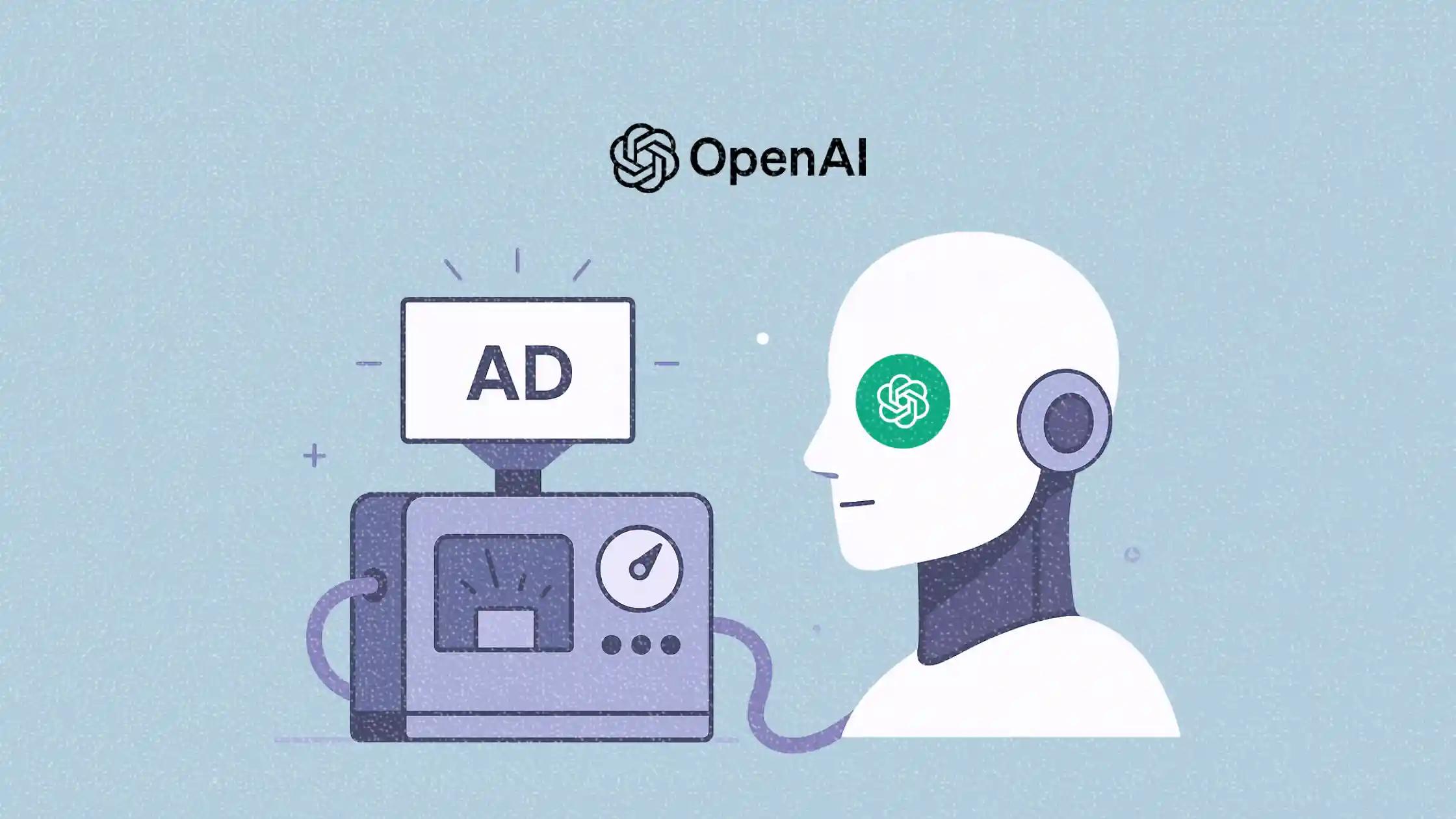
    OpenAI is expanding its ChatGPT advertising pilot to more international markets, including the UK, Japan, South Korea, Brazil, and Mexico, according to a report from Adweek.

    The move comes shortly after OpenAI launched its self-service ads platform in the U.S., signaling a bigger push into the digital advertising industry.

    The new ChatGPT ad ecosystem now includes:

    • Self-service ad buying
    • Conversion tracking
    • Pixel measurement
    • CPC and CPM bidding
    • Third-party ad tech integrations

    OpenAI is also working with companies like AdobeCriteo, and StackAdapt to help brands and agencies integrate conversational AI ads into existing marketing workflows.

    This expansion is important because conversational AI is starting to change how users discover products and information online. Instead of traditional search results, users increasingly rely on AI-generated answers, creating a new environment for advertisers.

    For publishers and ad tech professionals, this could mean:

    • Reduced dependence on search traffic
    • Growth in AI-driven advertising
    • More focus on first-party data
    • New monetization opportunities inside AI platforms

    OpenAI says ads will not influence ChatGPT responses and that advertisers will only receive aggregated reporting data.

    As AI platforms continue evolving, conversational advertising is quickly becoming one of the most watched trends in ad tech.