Tag: Google Ad Manager

  • How to Fix Low Fill Rate in Google Ad Manager (GAM)

    How to Fix Low Fill Rate in Google Ad Manager (GAM)

    How to Fix Low Fill Rate in Google Ad Manager (GAM)

    If your revenue drops despite steady traffic, the first metric to audit is your Fill Rate. A low fill rate indicates that your site is generating ad requests that aren’t converting into impressions. Essentially, you are leaving money on the table.

    What Is Fill Rate?

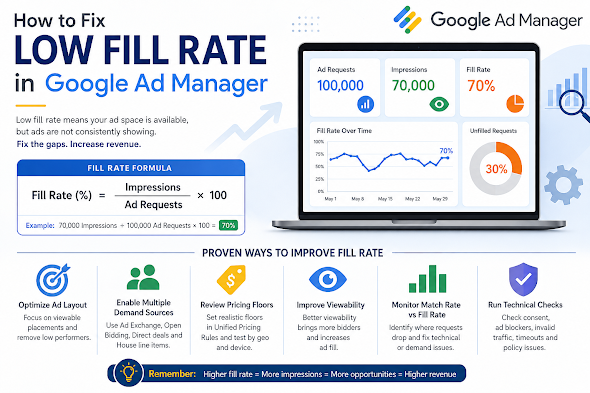
    Fill rate is the percentage of ad requests that result in a displayed ad.

    Example: If you have 100,000 ad requests but only 70,000 impressions, your fill rate is 70%. While “healthy” rates vary by niche, most publishers aim for 80–95% on standard display inventory.


    5 Common Culprits Behind Low Fill Rate

    ReasonThe Impact
    Low Geo DemandTraffic from Tier 3 countries often lacks the advertiser depth to fill every request.
    Ad Unit OverloadToo many ad units on one page dilute bid competition and slow down page rendering.
    Restrictive SizesUsing non-standard sizes (e.g., 200×200) limits the pool of available creative assets.
    Aggressive FloorsSetting CPM floors too high rejects bids that would otherwise have filled the slot.
    Technical LatencyIf the page loads too slowly, the user may scroll past or leave before the ad renders.

    Strategic Solutions to Boost Fill

    1. Optimize Pricing Rules (UPRs)

    Check your Unified Pricing Rules in GAM. If your floors are set based on peak seasonal demand (like Q4), they may be too high for slower periods.

    • Action: Experiment with “Floor Shifting.” Lower floors for specific low-demand geographies or devices to capture “long-tail” revenue.

    2. Diversify Your Demand Stack

    Don’t put all your eggs in the AdSense/AdX basket. High-growth publishers use a multi-layered approach:

    • Header Bidding: Bring in Prebid.js to force AdX to compete with external SSPs.
    • Open Bidding: Enable Google’s server-to-server demand.
    • Backfill/House Ads: Ensure you have a “catch-all” line item (like a self-promotion or a low-priority ad network) to ensure 0% of requests go to waste.

    3. Focus on “Signal” over “Volume”

    Advertisers bid more—and more often—on high-viewability inventory.

    • Lazy Loading: Only request the ad when the user is about to scroll to it. This reduces “unfilled” requests from the bottom of the page that never get seen.
    • Ad Refresh: If using auto-refresh, ensure it only triggers when the ad is in view.

    4. Standardize Ad Sizes

    Enable Multi-Size Pricing. Instead of just requesting a 300×250, allow the slot to accept 300×600 or 320×50. Increasing the number of eligible creatives for a single slot naturally drives up the fill rate.


    Technical Troubleshooting Checklist

    If your demand looks healthy but fill is still low, check for these “silent killers”:

    • CMP Issues: If your Consent Management Platform isn’t firing correctly, Google cannot serve personalized ads (or any ads) in regulated regions like the EU (GDPR).
    • app-ads.txt / ads.txt: Ensure your file is reachable and up to date. Missing entries will lead to immediate bid rejection.
    • Mismatched Line Items: Check if your line item targeting (Geo, Device, Key-values) is too narrow for the traffic you are receiving.
    • Rendering Timeouts: If your Header Bidding timeout is too short, the auction might close before bids arrive.


    Summary: When Should You Worry?

    A temporary dip during the start of a quarter (January, April, July, October) is normal as advertiser budgets reset. However, a sustained drop usually points to a pricing mismatch or a technical bottleneck.

    The Goal: Optimization isn’t about adding more ads; it’s about making your existing ad slots more “eligible” for the highest number of buyers possible.

  • The “Traffic vs. Revenue” Paradox: Why Your Ad Revenue Dropped (Despite Stable Traffic)

    The “Traffic vs. Revenue” Paradox: Why Your Ad Revenue Dropped (Despite Stable Traffic)

    The “Traffic vs. Revenue” Paradox: Why Your Ad Revenue Dropped (Despite Stable Traffic)

    Seeing your revenue dip while your traffic remains steady is a frustrating puzzle for any publisher. On the surface, it feels like a technical glitch—but in the world of modern ad tech, traffic is only one variable in a complex equation.

    Earnings are driven by a mix of advertiser demand, technical performance, and audience composition. If your “total visitors” count is the only metric you’re watching, you’re missing the forest for the trees.

    1. Macro-Economic & Seasonal CPM Shifts

    The most common culprit isn’t your site—it’s the market. CPMs (Cost Per Mille) are dictated by advertiser appetite, which fluctuates based on:

    • The “January Slump”: Following the high-spend holiday season (Q4), advertisers slash budgets in Q1, leading to a universal drop in CPMs.
    • Economic Headwinds: During inflation or recession scares, brands pivot from “brand awareness” (display ads) to “direct response” (search/social), lowering the auction pressure on your site.

    2. Shifts in “Audience Quality”

    Not all pageviews carry the same weight. A shift in where your traffic comes from can decimate your RPM (Revenue Per Mille):

    • Geography: 1,000 visitors from the US or UK (Tier 1) are often worth 5–10x more than 1,000 visitors from emerging markets due to advertiser competition.
    • Source: Organic search visitors usually have higher “intent” and stay longer than “viral” social media traffic, making them more valuable to bidders.

    3. The Viewability Trap

    Advertisers are increasingly savvy; they don’t just pay for “loaded” ads, they pay for seen ads.

    If your Viewability Score (the % of ads that are on-screen for at least one second) drops below 50–60%, premium bidders will flee. Common causes include:

    • Slow-loading ad units (the user scrolls past before the ad renders).
    • Content shifts (CLS) that push ads out of the viewport.
    • Lazy-loading configurations that are too aggressive.

    4. Technical Friction & “Signal Loss”

    The “behind-the-scenes” tech can often break without affecting the front-end user experience:

    • Consent Management (CMP) Failures: If your cookie consent banner isn’t firing correctly, you lose the ability to serve personalized ads, which can tank CPMs by 50% or more.
    • Privacy Updates: Increased tracking prevention in browsers like Safari and Firefox (and the slow fade of third-party cookies) means less data for advertisers, resulting in lower bids.
    • Ad Blockers: A tech-savvy audience shift can result in more “ghost” traffic—users who show up in your analytics but never request an ad.

    5. Inventory and Auction Pressure

    If you use Header Bidding or a Unified Auction, your revenue relies on competition.

    • Bidder Health: If one of your major SSPs (Supply Side Platforms) has a technical issue or pauses their spend on your domain, the lack of competition allows other bidders to win your inventory at lower prices.
    • Floor Prices: If you’ve set your “Hard Floors” too high, your fill rate will tank. If they are too low, you may be “leaving money on the table.”

    How to Diagnose the Drop: A Checklist

    Before panicking, run these reports in your Ad Server (GAM, AdSense, etc.) and compare the last 30 days to the previous period:

    Metric to CheckWhat it Tells You
    eCPM by GeographyDid your high-value US traffic drop while low-value traffic grew?
    Fill RateAre you failing to sell the inventory you have?
    Viewability %Are your ads loading too slowly or in the wrong places?
    Bid DepthIs the number of advertisers competing for your slots decreasing?
    CPM by DeviceIs a specific mobile update or layout change hurting mobile revenue?

  • How to Add Ad Units in Google Ad Manager (GAM) for Beginners

    How to Add Ad Units in Google Ad Manager (GAM) for Beginners

    How to Add Ad Units in Google Ad Manager (GAM) for Beginners

    If you’re just starting with Google Ad Manager, one of the first things you need to understand is Ad Units.

    Ad Units are the spaces on your website where ads appear. Think of them as “containers” that tell Google Ad Manager exactly where an advertisement should be displayed — like the header, sidebar, in-article section, or footer.

    Without properly created Ad Units, GAM cannot serve ads correctly.

    This beginner-friendly guide walks you through the entire process step by step.


    What Are Ad Units in Google Ad Manager?

    An Ad Unit is a defined ad placement inside your website or app.

    Examples include:

    • Homepage banner
    • Sidebar rectangle
    • Sticky footer ad
    • In-article ad
    • Mobile anchor ad

    Each Ad Unit has:

    • A unique name
    • A unique code
    • Supported ad sizes
    • Targeting settings

    These are later connected to:

    • Line items
    • Orders
    • AdSense or Ad Exchange demand
    • Header bidding partners

    Why Proper Ad Unit Setup Matters

    A clean Ad Unit structure helps with:

    • Better reporting
    • Easier troubleshooting
    • Improved targeting
    • Higher CPM optimization
    • Cleaner header bidding integration
    • Better inventory organization

    Poorly organized ad units can create confusion later when your site scales.


    Before You Start

    You need:

    • A working Google Ad Manager account
    • Access to your website code or CMS
    • Basic understanding of where ads will appear on your site

    Step-by-Step: How to Add Ad Units in GAM

    Step 1: Login to Google Ad Manager

    Go to:

    Google Ad Manager

    After logging in:

    • Open the left sidebar
    • Click Inventory
    • Select Ad Units

    Step 2: Click “New Ad Unit”

    Inside the Ad Units page:

    • Click the New Ad Unit button
    • A setup page will appear

    This is where you define your ad placement.


    Step 3: Enter Ad Unit Details

    Ad Unit Name

    Use descriptive names.

    Good examples:

    • Homepage_Top_Leaderboard
    • Article_InContent_1
    • Sidebar_Rectangle
    • Mobile_Sticky

    Avoid random names like:

    • Ad1
    • BannerTest
    • Unit123

    Ad Unit Code

    This is automatically generated but can usually be customized.

    Keep it:

    • Short
    • Clean
    • Consistent

    Example:

    homepage_top
    article_mid_1
    sidebar_300x250

    Step 4: Select Ad Sizes

    Choose the ad sizes allowed in this placement.

    Common desktop sizes:

    • 728×90
    • 300×250
    • 336×280
    • 160×600

    Common mobile sizes:

    • 320×50
    • 300×250
    • 320×100

    You can:

    • Add multiple sizes
    • Use responsive sizes
    • Enable fluid/native formats

    Example:

    300x250, 336x280

    Step 5: Configure Target Window

    You’ll usually see:

    • Top Frame
    • SafeFrame
    • Friendly iframe

    For beginners, the default setting is generally fine.


    Step 6: Save the Ad Unit

    Click:

    Save

    Your new Ad Unit is now created.


    How to Generate the GAM Ad Tag

    After saving:

    1. Select the Ad Unit
    2. Click Generate Tags
    3. Choose:
      • Google Publisher Tag (GPT)
      • Single Request Architecture (recommended)

    GAM will generate JavaScript code.

    Example:

    <div id='div-gpt-ad-123456'></div>
    <script>
    googletag.display('div-gpt-ad-123456');
    </script>

    You’ll place this code on your website where you want ads to appear.


    Recommended Ad Unit Naming Structure

    As your site grows, organization becomes important.

    A good format is:

    Site_Section_Position_Size

    Example:

    Blog_Header_728x90
    Article_Mid_300x250
    Mobile_Footer_320x50

    This makes reporting much easier later.


    Best Practices for Beginners

    1. Keep Naming Consistent

    Consistency prevents confusion when managing hundreds of placements later.


    2. Avoid Too Many Sizes

    Too many ad sizes can:

    • Slow auctions
    • Reduce bid competition
    • Cause layout shifts

    Stick to high-performing standard sizes first.


    3. Separate Desktop and Mobile

    Desktop and mobile behavior are very different.

    Create dedicated units like:

    Desktop_Top
    Mobile_Top

    instead of mixing everything together.


    4. Use Responsive Design Carefully

    Responsive ads are useful, but incorrect implementation can break layouts.

    Test thoroughly on:

    • Desktop
    • Tablet
    • Mobile

    5. Plan for Future Growth

    Even if your site is small now, structure inventory properly from the start.

    This becomes critical when adding:

    Direct campaigns

    Ad Exchange

    Open Bidding

    Header bidding

  • How to Improve Ad Viewability on Websites

    How to Improve Ad Viewability on Websites

    In digital advertising, traffic alone is no longer enough. One of the biggest factors that directly impacts ad revenue today is ad viewability — a metric that measures whether users actually see the ads displayed on your website.

    A page can generate thousands of impressions, but if users never scroll far enough to see the ads, advertisers may pay less or stop bidding aggressively altogether.

    For publishers using platforms like Google Ad Manager or programmatic demand sources, improving viewability can significantly increase CPMs, advertiser trust, and long-term revenue performance.

    What Is Ad Viewability?

    According to industry standards from the Interactive Advertising Bureau (IAB), a display ad is considered viewable when:

    • At least 50% of the ad is visible on screen
    • For at least 1 continuous second

    For video ads, the requirement is typically:

    • 50% visible for at least 2 continuous seconds

    This means an ad loaded somewhere far below the fold may count as an impression, but not necessarily as a viewable impression.

    Why Viewability Matters

    Higher viewability usually leads to:

    • Better CPMs
    • Increased advertiser demand
    • Improved bidding competition
    • Higher Active View rates in GAM
    • Better user engagement
    • Stronger long-term monetization

    Many advertisers now optimize campaigns specifically around viewable inventory instead of raw impressions.


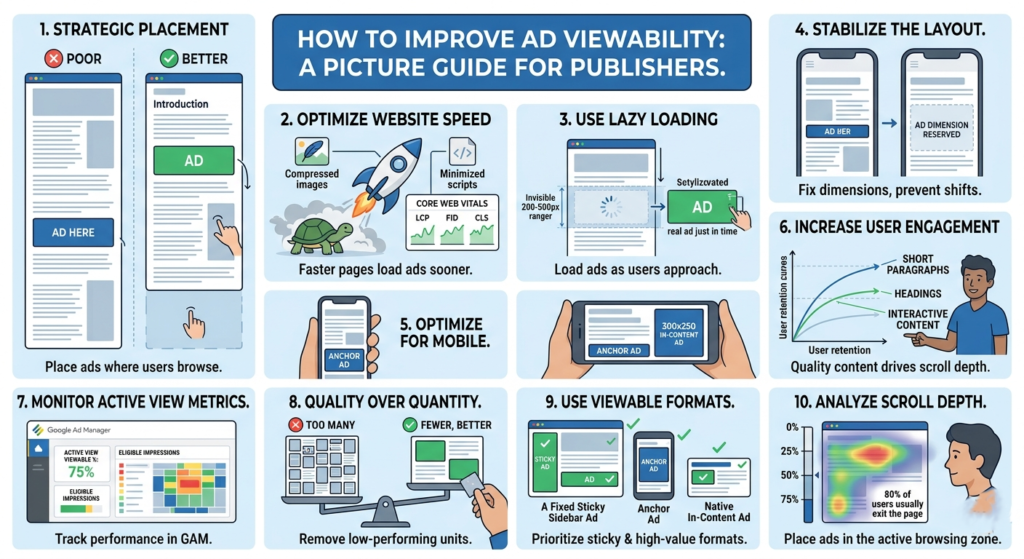
    1. Place Ads Above the Fold Carefully

    “Above the fold” refers to the section visible before users scroll.

    Ads placed too low on the page often suffer from poor viewability because visitors leave before reaching them.

    Good placements include:

    • Below the article title
    • Within the content after a few paragraphs
    • Sticky sidebar ads on desktop
    • Anchor ads on mobile

    Avoid stuffing too many ads at the very top. Excessive ad density can hurt user experience and increase bounce rate.

    Example of Better Placement

    Poor Placement

    • Ad appears after 1,500 words
    • Most users never reach it

    Better Placement

    • Ad appears after the introduction
    • Higher chance users actually see it

    2. Improve Website Speed

    Slow-loading websites reduce viewability because ads may load after users already scroll away.

    Focus on:

    • Compressing images
    • Using lazy loading
    • Reducing unnecessary scripts
    • Optimizing Core Web Vitals
    • Using lightweight themes

    A faster website gives ads more time to render while users are still viewing the page.

    Key Performance Areas

    • Largest Contentful Paint (LCP)
    • Interaction to Next Paint (INP)
    • Cumulative Layout Shift (CLS)

    These metrics also influence user retention and SEO performance.


    3. Use Lazy Loading for Ads

    Lazy loading delays ad requests until users approach the ad slot.

    Benefits include:

    • Faster initial page load
    • Better viewability
    • Reduced wasted impressions
    • Improved Active View metrics

    However, aggressive lazy loading can backfire if ads load too late. Balance is important.

    Many publishers configure ads to load when users are around 200–500px away from the slot.


    4. Reduce Layout Shifts

    If content jumps while loading, users may scroll unexpectedly past ads.

    This creates:

    • Poor user experience
    • Lower engagement
    • Reduced viewability

    Reserve fixed dimensions for:

    • Ad containers
    • Images
    • Embedded videos

    This helps stabilize the page while content loads.


    5. Optimize Mobile Experience

    Most website traffic today comes from mobile devices.

    Mobile-specific issues affecting viewability include:

    • Oversized ads
    • Slow mobile speed
    • Excessive sticky elements
    • Poor spacing
    • Intrusive popups

    Use responsive ad units and test placements across different screen sizes.

    Recommended Mobile Ad Sizes

    Common high-performing sizes include:

    • 320×50
    • 300×250
    • 320×100

    6. Increase User Engagement

    Users who stay longer on your site naturally view more ads.

    Ways to improve engagement:

    • Better article formatting
    • Strong introductions
    • Internal linking
    • Faster pages
    • Useful content
    • Cleaner design

    High bounce rates often correlate with lower viewability.

    Content Structure Tips

    • Use short paragraphs
    • Add headings regularly
    • Include images
    • Avoid large walls of text

    Good readability improves scroll depth.


    7. Monitor Active View Metrics in GAM

    If you use Google Ad Manager, monitor metrics such as:

    • Active View Viewable %
    • Active View Eligible Impressions
    • Measurable Impressions

    These reports help identify poorly performing placements.

    Low-performing ad units can then be:

    • Repositioned
    • Removed
    • Re-sized
    • Replaced with higher-performing formats

    8. Avoid Too Many Ads Per Page

    More ads do not always mean more revenue.

    Adding too many ad units can:

    • Slow the site
    • Lower viewability
    • Reduce competition
    • Hurt user trust

    Sometimes removing low-performing units actually increases overall RPM.

    Quality inventory generally performs better than excessive inventory.


    9. Test Different Ad Formats

    Some formats naturally achieve higher viewability.

    Examples:

    • Sticky sidebar ads
    • Anchor ads
    • In-content ads
    • Multiplex/native ads

    Formats that remain on screen longer tend to improve advertiser value.

    Always balance monetization with usability.


    10. Analyze Scroll Depth

    Understanding how far users scroll helps optimize ad placement.

    If most visitors only reach 40% of an article:

    • Ads below that point may never become viewable

    Use analytics tools to study:

    • Scroll behavior
    • Session duration
    • Exit points

    Then position ads where users are most active.